Follow the complete workflow from importing files to checking results across image compression, PDF compression, image conversion, and video conversion.
Choose Image Compression, PDF Compression, Image Conversion, or Video Conversion in the sidebar.
Drop a file, multiple files, or a folder into the processing queue.
Set quality, output format, codec, resolution, and destination in the inspector.
Test a small group first, then start the full batch.
Open the output folder and verify size, quality, format, and playback.
Before processing important files Keep a backup and test a small group first. Only enable replacement of source files after you have verified the result.
01 · Image compression
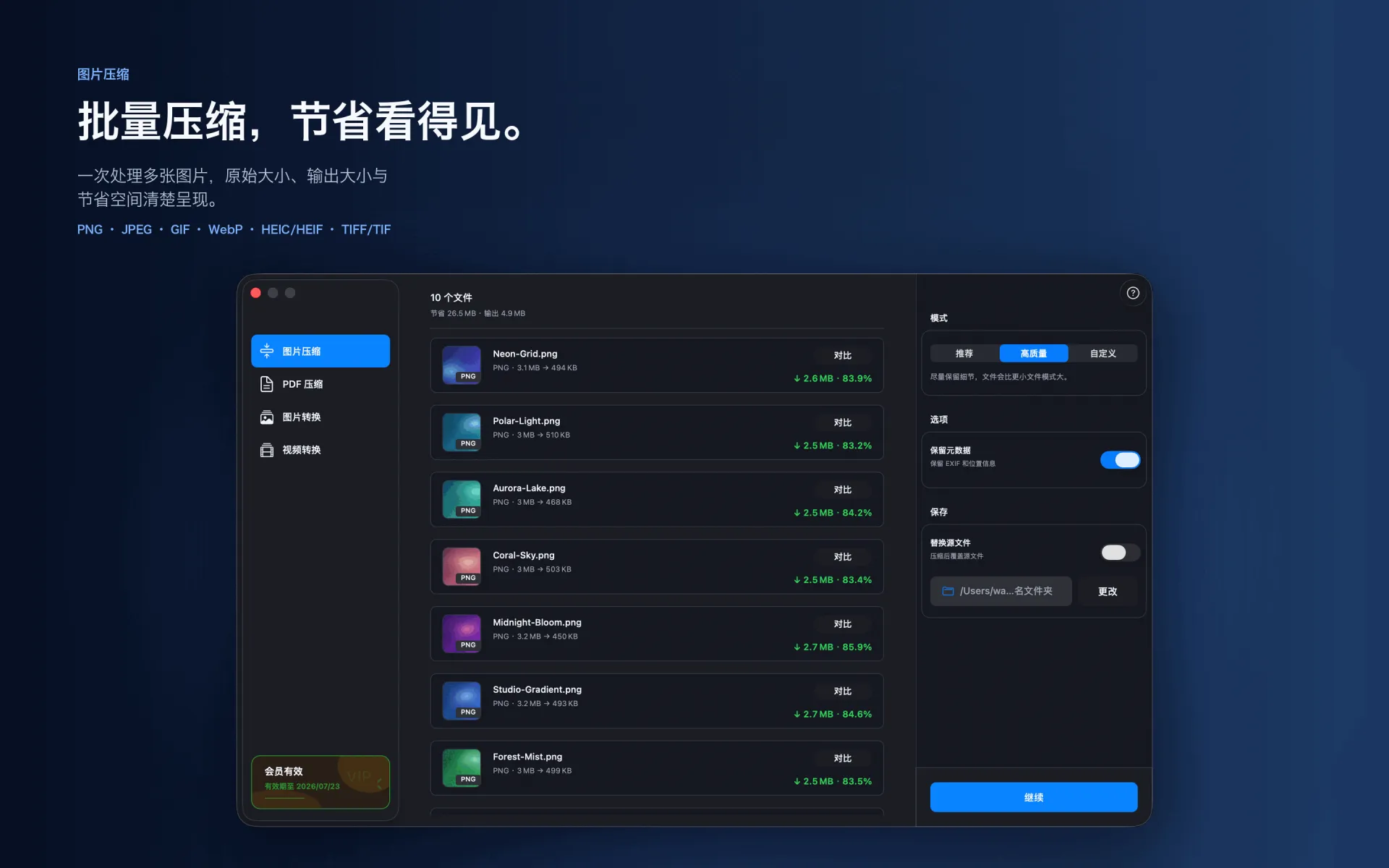
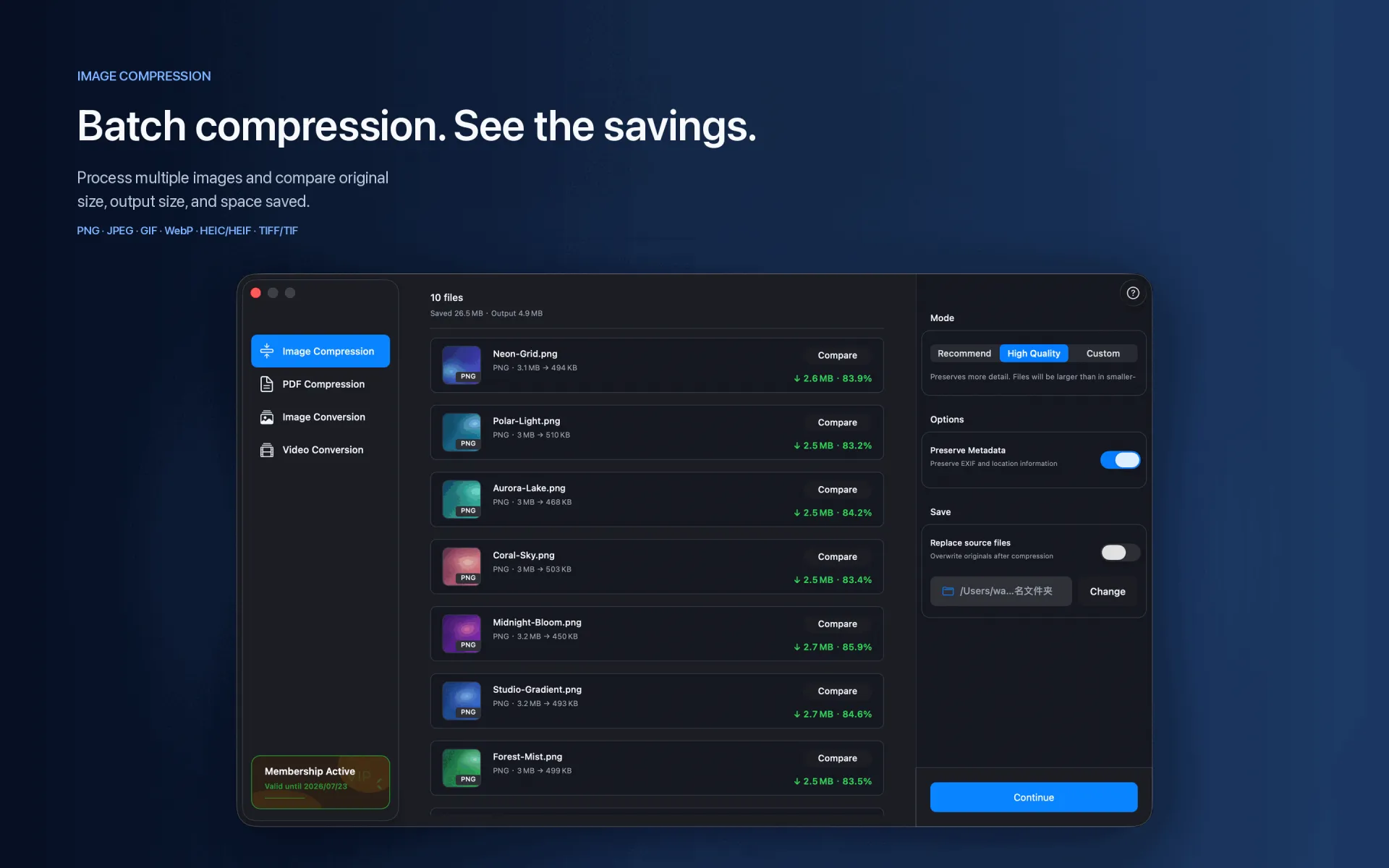
Compress images in batches
Import images or folders, then choose quality, metadata handling, destination, and whether to replace originals.
Recommended setup
Start with the recommended or balanced profile, then adjust after reviewing size and quality.
Keep metadata when capture details matter; remove it when appropriate for web or sharing.
PNG · JPEG · GIF · WebP · HEIC/HEIF · TIFF/TIF
02 · PDF compression
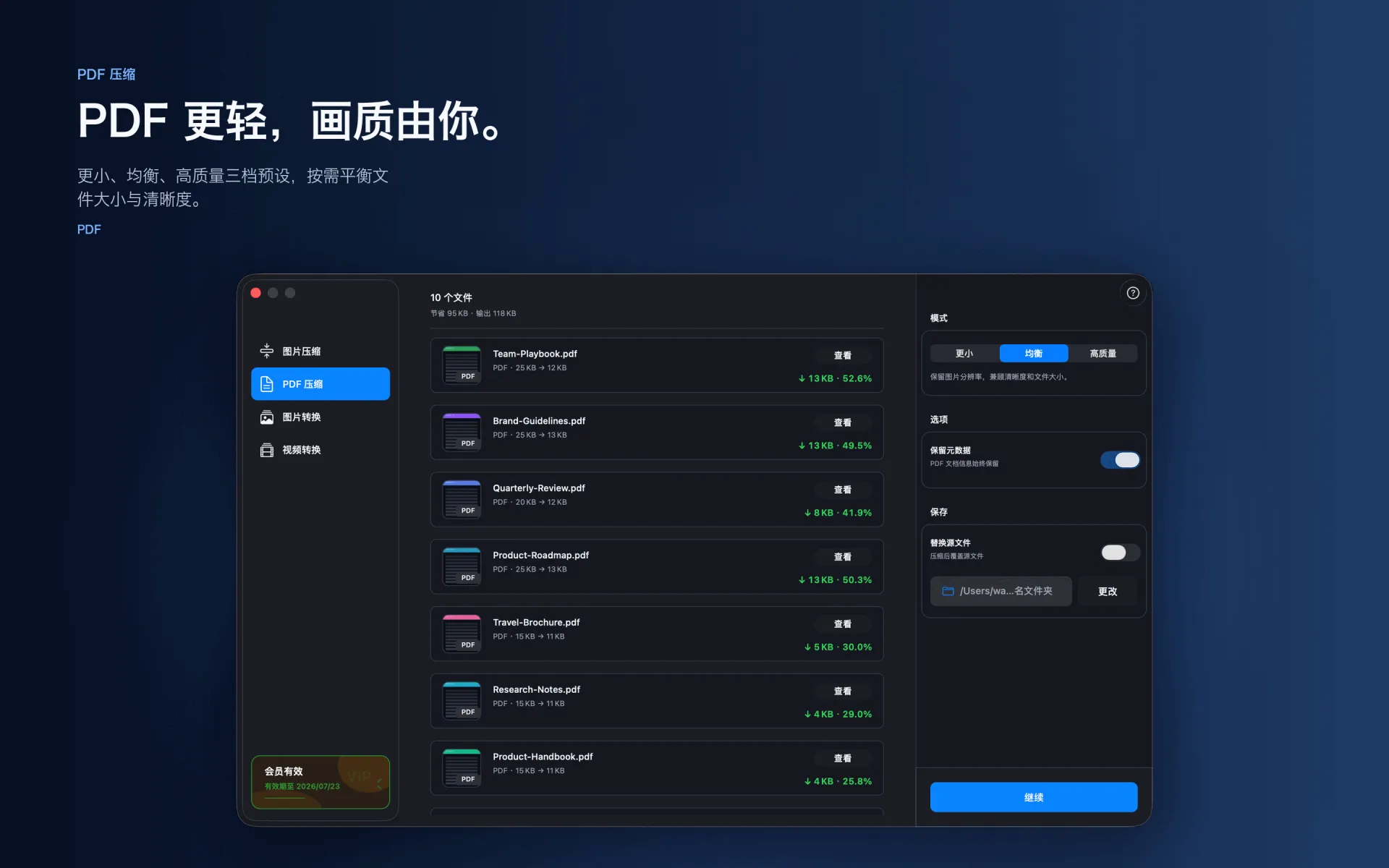
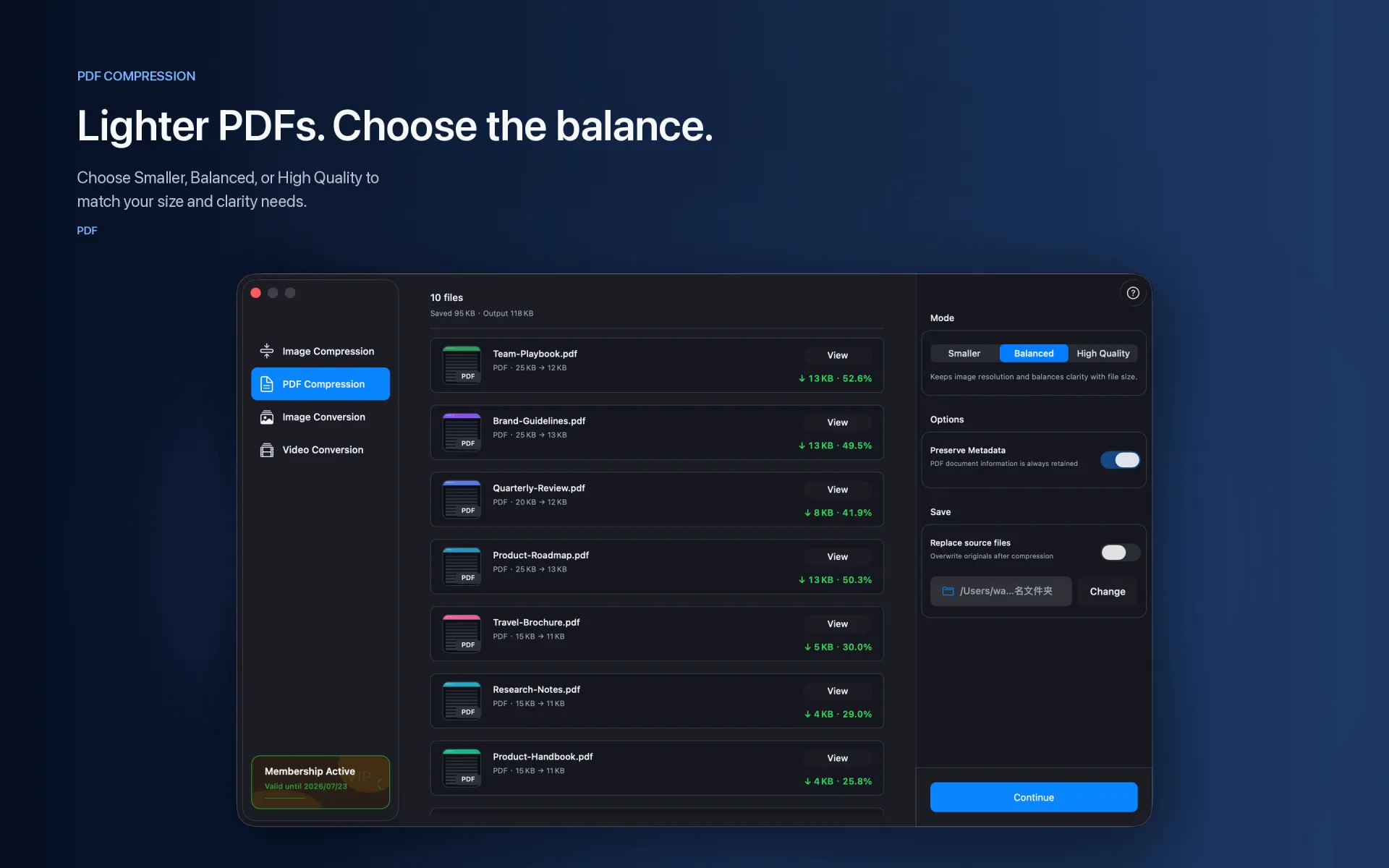
Batch-compress PDFs in a dedicated queue
Import PDFs or folders, choose Smaller, Balanced, or High Quality, select a destination, and review each document's size change when processing finishes.
What to check
Start with Balanced, then choose Smaller or High Quality after reviewing clarity and output size.
Preserve document information when needed, and verify results before replacing source files.
When encrypted, signed, or interactive content cannot be processed safely, the app keeps the source and shows a warning.
PDF · Smaller · Balanced · High Quality
03 · Image conversion
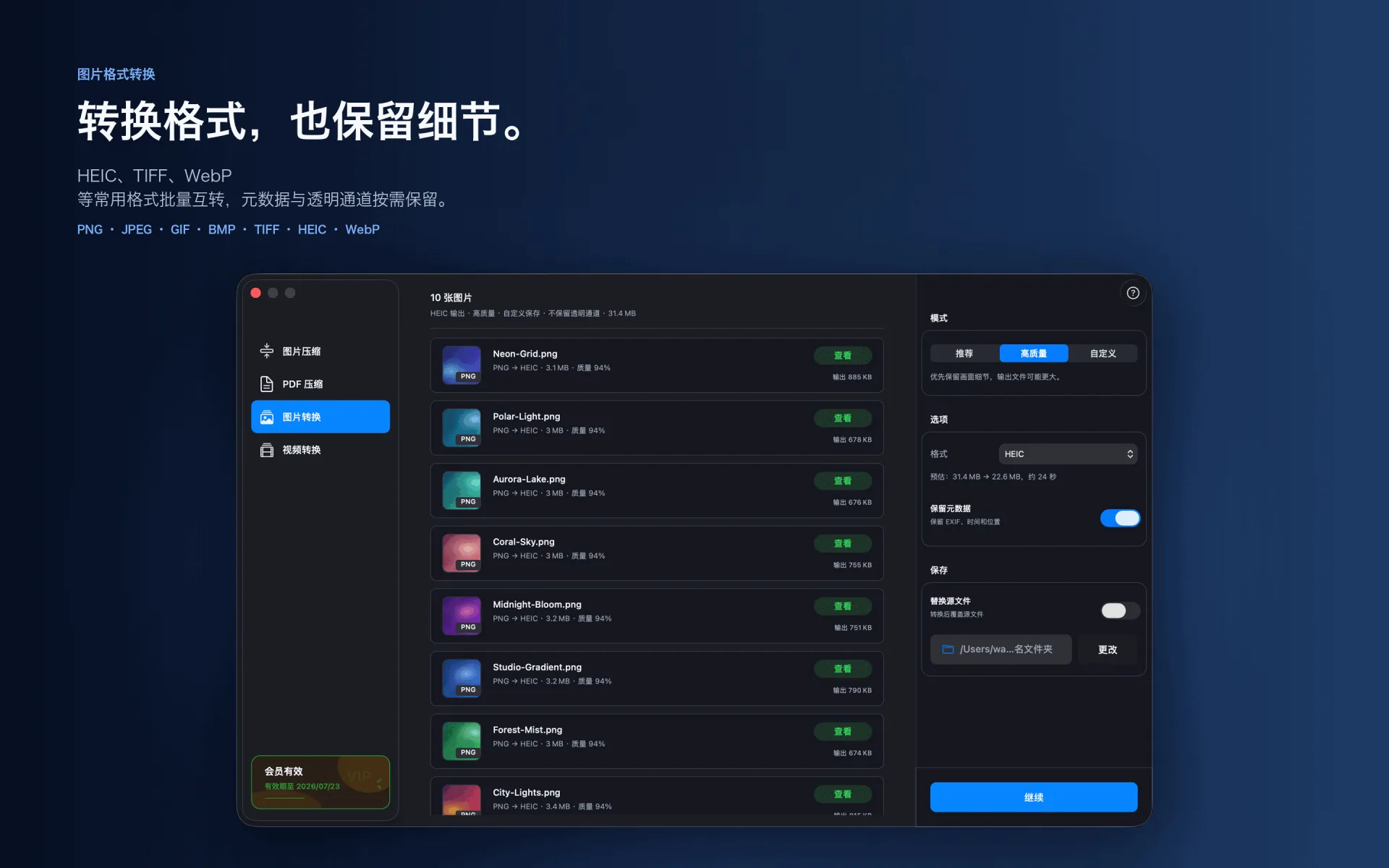
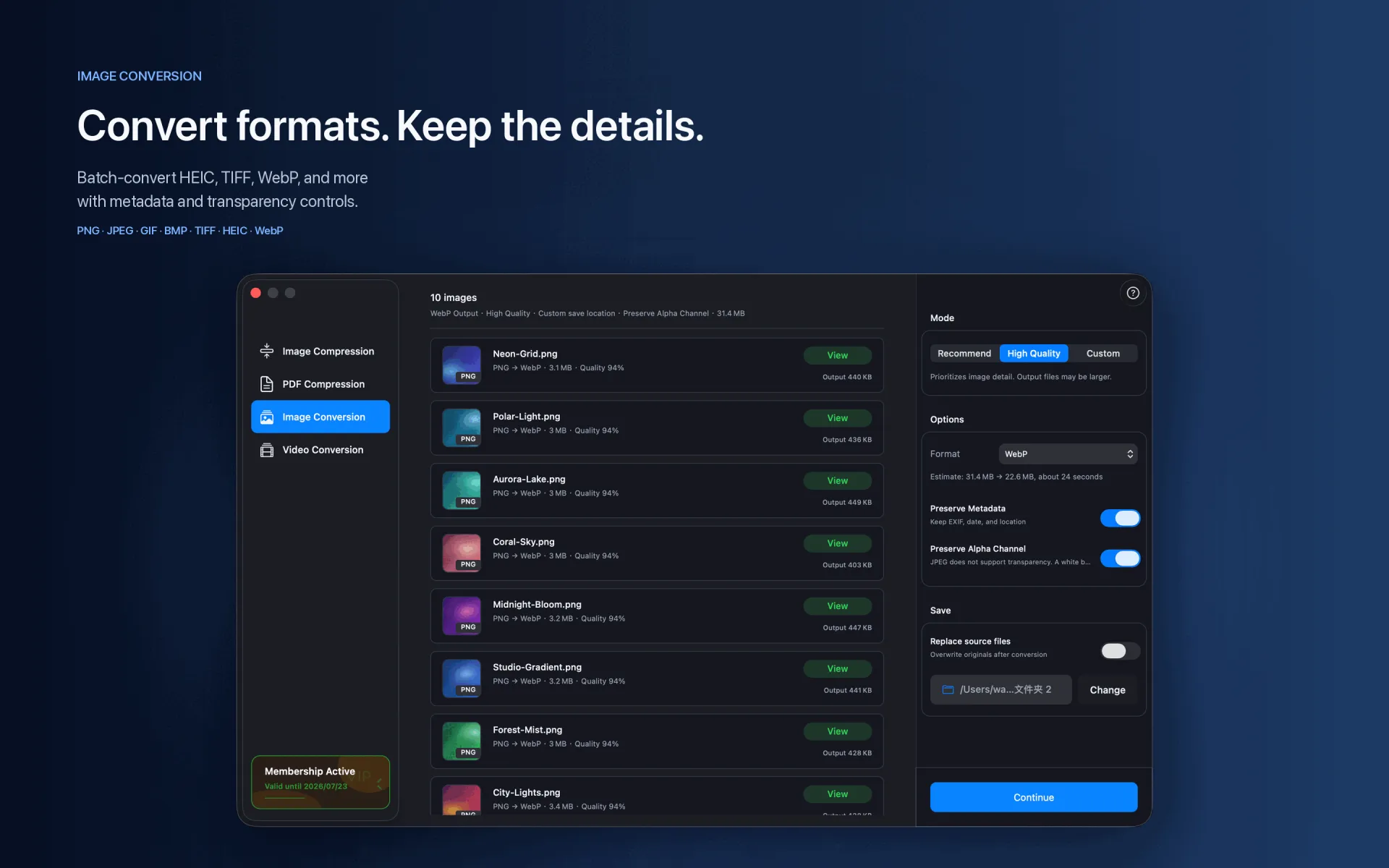
Convert image formats in batches
Convert HEIC, WebP, and other images to broadly compatible JPEG or PNG, or move between other common image formats.
What to check
Choose an output format, then review quality, alpha-channel, and metadata options.
JPEG does not support transparency. Choose PNG or another alpha-capable format when transparency matters.
After conversion, verify the extension, color, and transparent areas.
JPEG · PNG · GIF · BMP · TIFF · WebP · HEIC/HEIF
04 · Video conversion
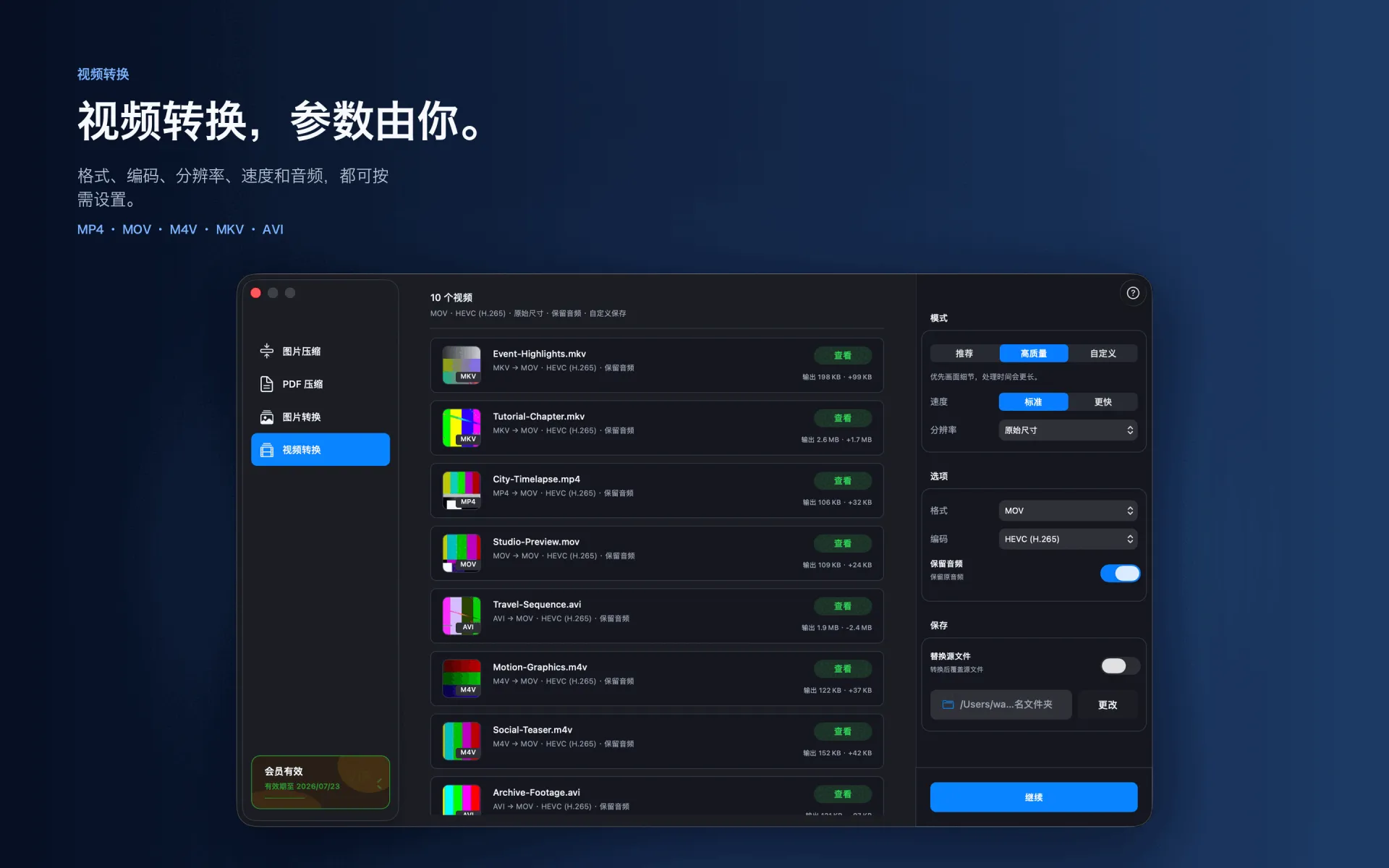
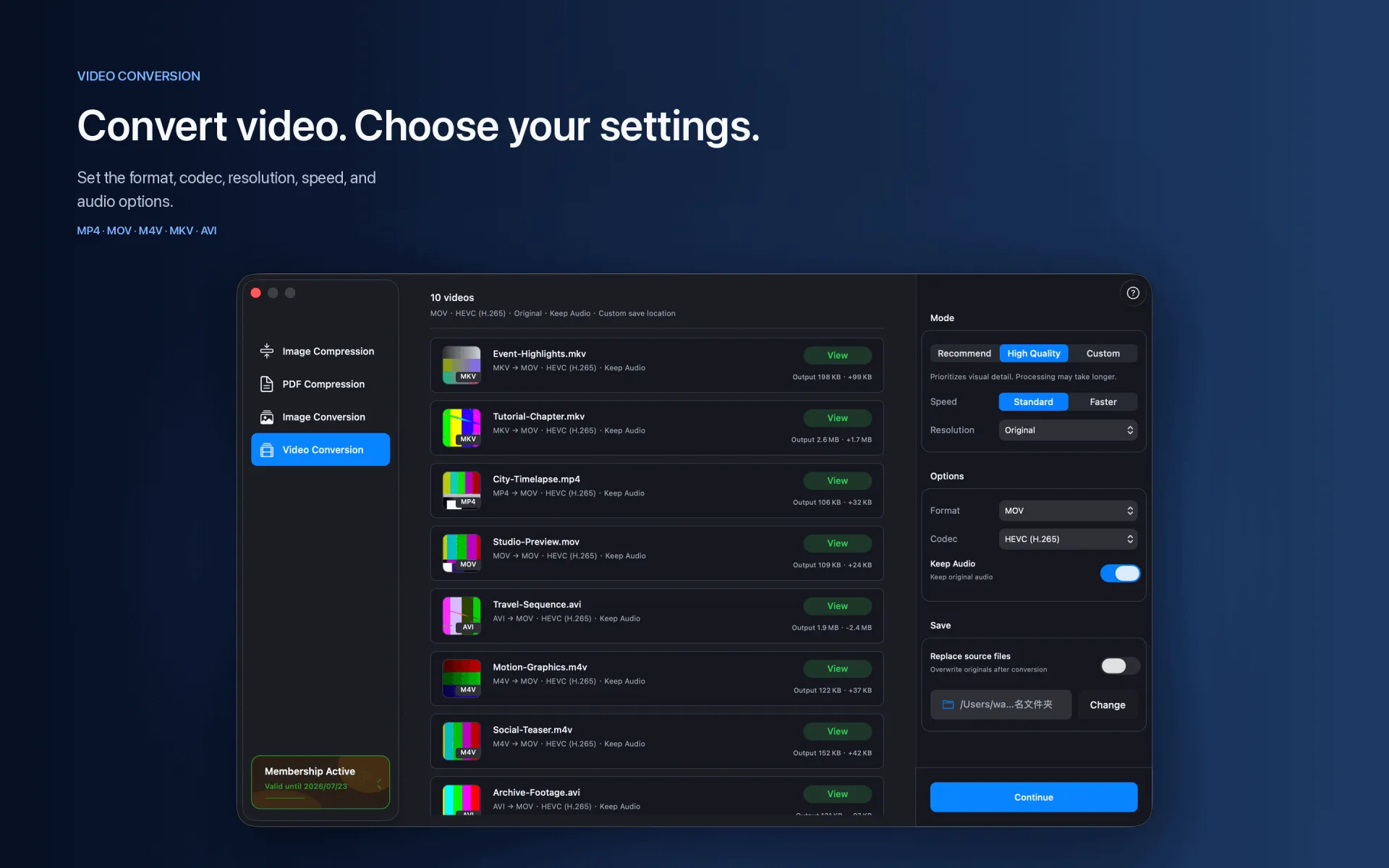
Convert format, codec, and resolution
Compress video, convert MKV or MOV to MP4, or turn HEVC into broadly compatible H.264.
What to check
Choose MP4, MOV, M4V, MKV, or AVI, then select H.264 or HEVC where supported.
Keep the original resolution or choose 4K, 1440p, 1080p, 720p, 480p, 360p, or a custom size.
Confirm audio handling and play the result on the target device or platform before delivery.
MP4 · MOV · M4V · MKV · AVI · H.264 · HEVC
05 · Results and output
Verify results before organizing source files.
The queue shows each file's status. When processing finishes, open the destination, confirm every file opens or plays correctly, and compare size and quality. If needed, adjust settings and process the original again.
Local processing and network access Image, PDF, and video processing happens locally on Mac. App Store download, purchase validation, restore purchases, update checks, or feedback you submit may require network access.